Real alarm
A commitment alarm for the times you choose.
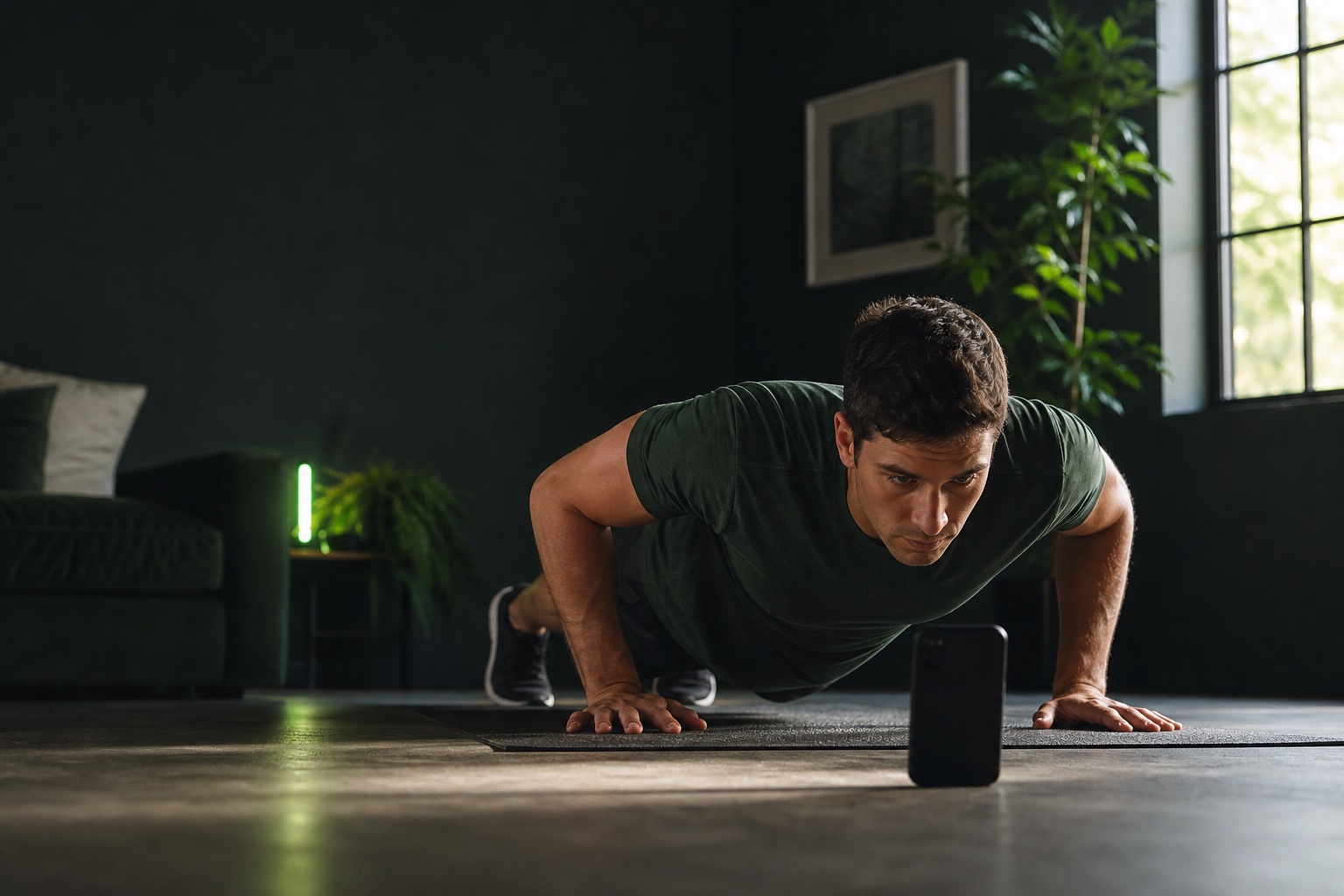
Push-up alarm app for iPhone
Grow Arms turns scheduled workout alarms into short push-up sets, counts accepted reps on your iPhone, and makes consistency visible.

A commitment alarm for the times you choose.
Accepted reps are analyzed on your iPhone.
See sessions, volume, goals, and measurements.
Turn a chosen time into a visible habit.
Camera-assisted sets
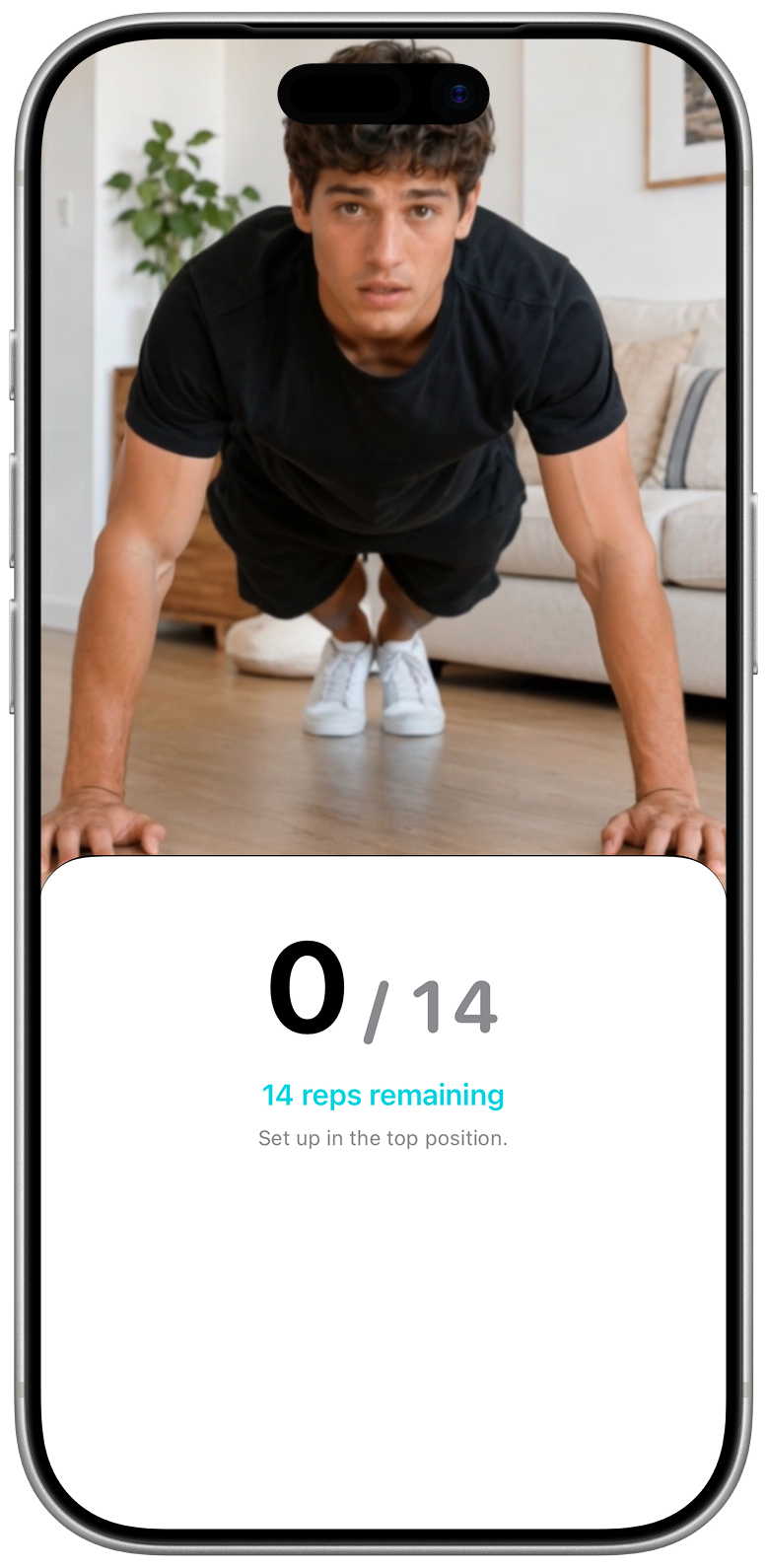
Set your iPhone nearby, get into position, and finish the goal shown on screen. Rep counting happens on your device as you move.
Why Grow Arms
Each chosen time leads to a specific set instead of another notification that disappears. You see the goal, do the work, and keep an honest record.
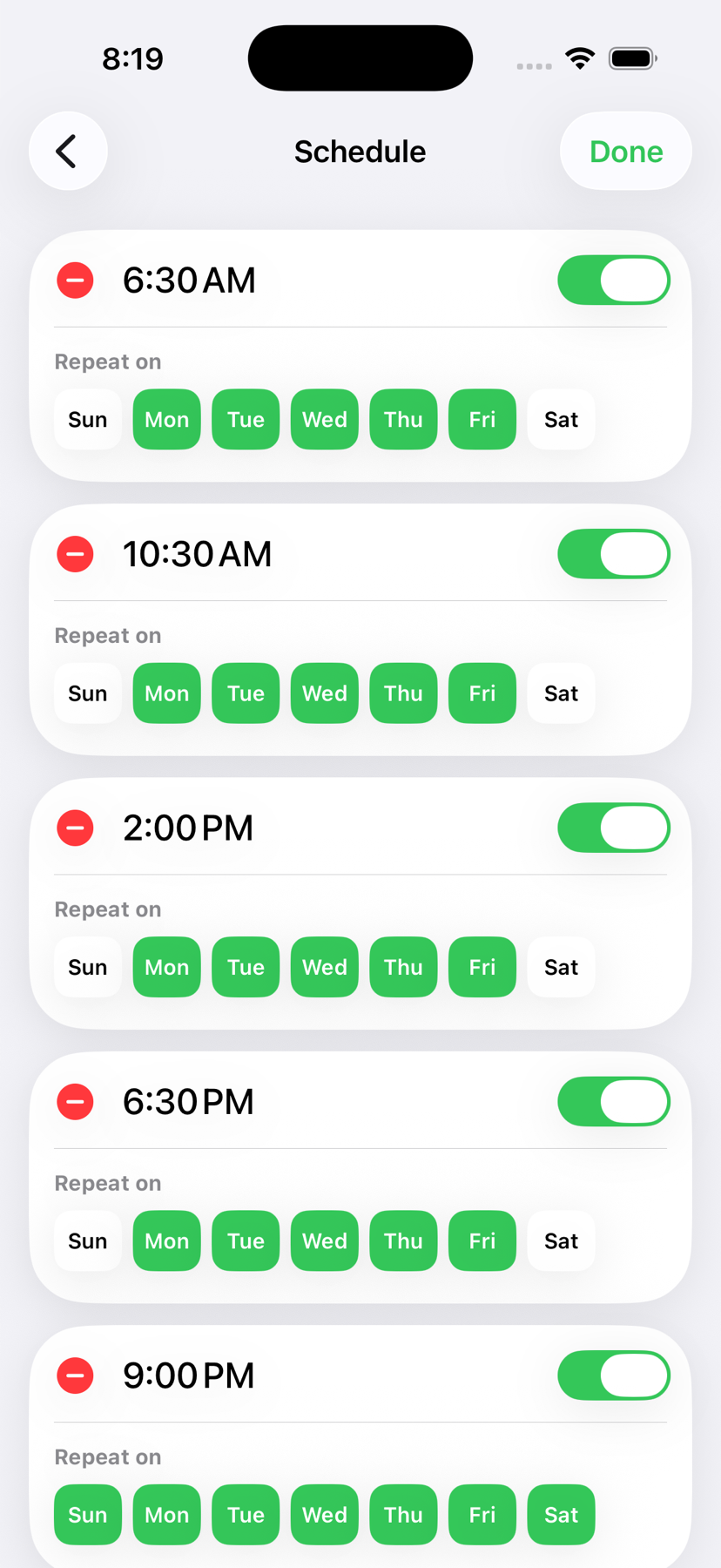
Choose active days and training times that fit your day and recovery.
Live camera frames are checked on device for the expected movement cycle.
Review push-up volume, goals, upcoming sessions, and body measurements.
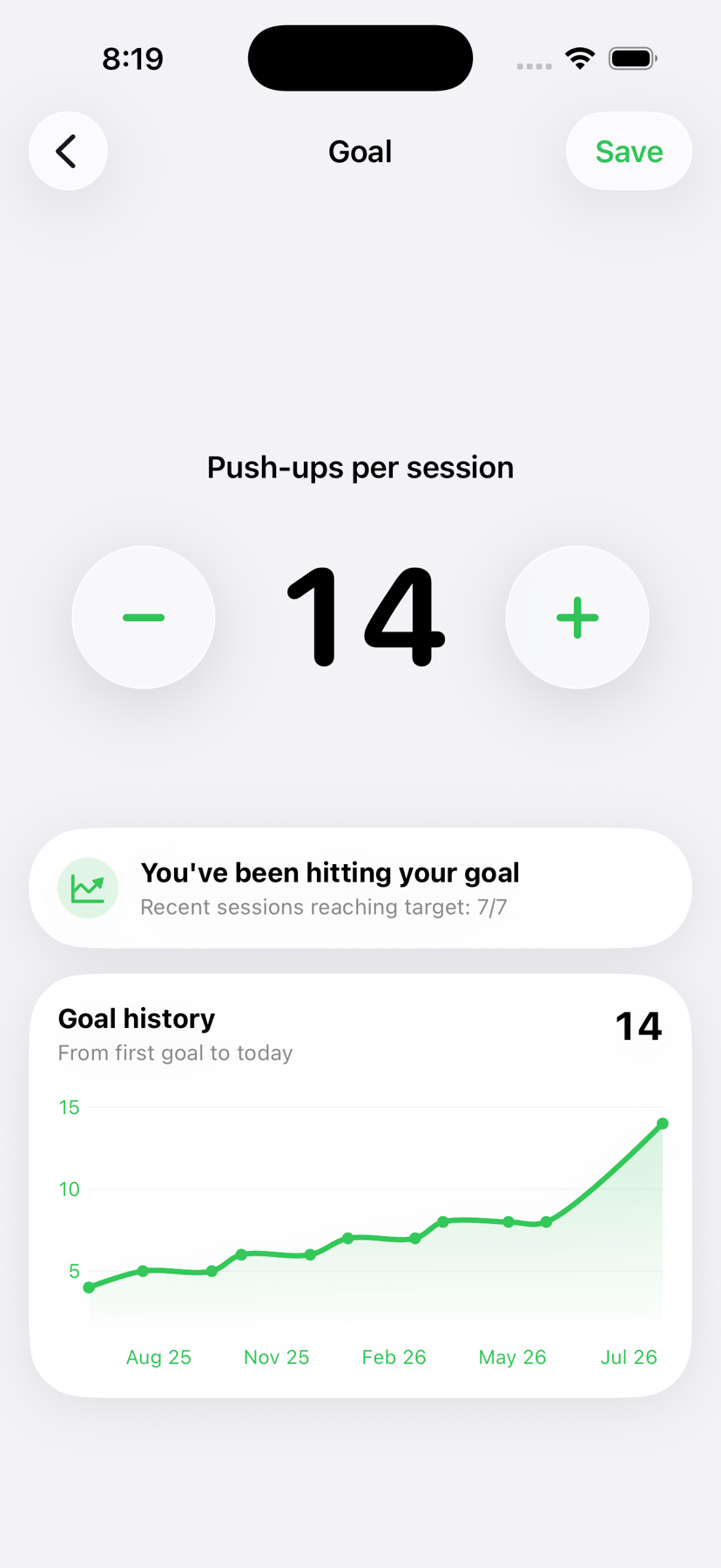
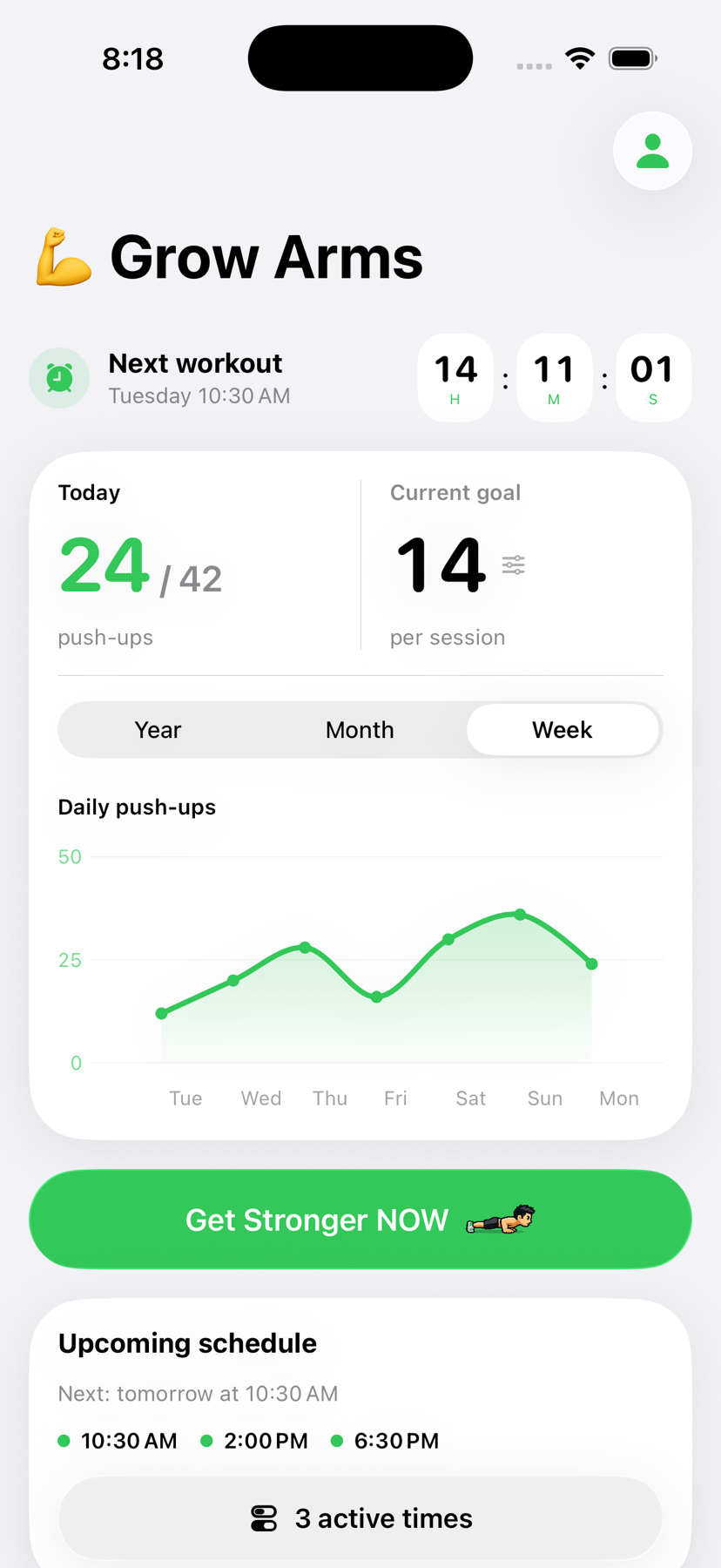
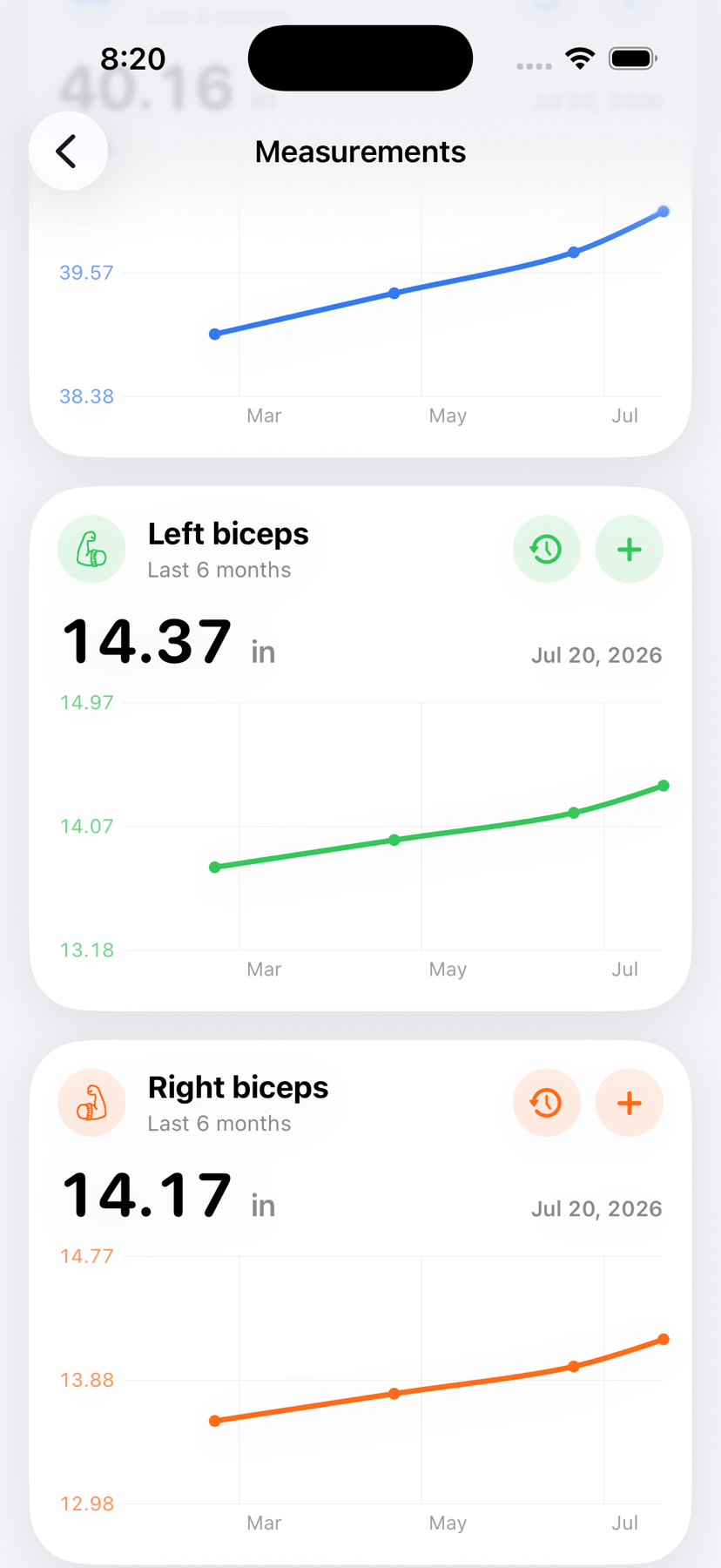
Track progress
See today’s volume, your next workout, per-session goal, upcoming schedule, and measurement history in one focused app.
How it works
A small loop, repeated consistently.
Choose a manageable number of push-ups per session.
Build a schedule around the days and moments that work for you.
Open the linked workout and start your push-up set.
Finish accepted reps, then adjust your plan from real history.
Practical push-up guides
Practical articles about push-up alarms, camera counting, schedule design, recovery, and realistic beginner targets.
See how Grow Arms connects an iPhone alarm to a focused push-up set.
Read the guide Push-up reminder appBuild a reminder schedule that fits your day instead of creating another alert you swipe away.
Read the guide Camera push-up counterLearn how to position your iPhone for reliable, private camera-assisted counting.
Read the guide Anti-snooze routinePair better sleep and a clear wake-up routine with a movement-based commitment alarm.
Read the guide Beginner push-up planUse submaximal sets, a repeatable schedule, and gradual manual goal changes.
Read the guide Daily push-up targetWhy there is no universal number—and how to choose a safer personal starting target.
Read the guide Micro-workout timingCompare distributed sets with one concentrated session and choose the format you can repeat.
Read the guide Training frequencyChoose frequency from effort and recovery, not from streak pressure.
Read the guidePush-up alarm app FAQ
Straight answers about iPhone alarms, camera counting, privacy, frequency, and safety.
A push-up alarm app connects a scheduled alert to an exercise session. Grow Arms opens the matching challenge, uses the iPhone camera to count accepted reps on device, and records whether the planned set was completed.
Learn more about push-up commitment alarmsGrow Arms is built for that commitment flow: answer the alarm, open the linked set, and complete the target. You can always use iOS system controls when you need to stop.
Learn how the alarm-to-workout flow worksProtect enough sleep first, keep a consistent schedule, move the phone out of easy reach, and make the first action specific. A movement-based commitment alarm can add friction, but it cannot replace adequate sleep or address a medical cause of persistent difficulty waking.
Learn more about reducing snooze habitsYes. Choose active weekdays and several workout times, then review the scheduled sessions. Start with a frequency and rep target you can recover from before adding more alarms.
Learn how to build a push-up reminder scheduleThe app analyzes live frames on the iPhone and accepts a rep after the expected top-down-top movement cycle. Phone placement, lighting, clothing, framing, and pace can affect recognition; it is not a medical form assessment.
Learn about camera-assisted push-up countingNo workout video is uploaded or stored by default. Camera frames are processed on the device for rep counting.
Learn more about on-device camera privacyThere is no universal number. Start below your current maximum, preserve controlled technique, allow recovery, and adjust from repeated sessions rather than chasing a headline total.
Learn how to choose a personal daily targetEither can fit, depending on effort, total volume, recovery, and experience. Every other day is a clear beginner rhythm; daily practice should stay lower effort and should never override recovery needs.
Compare daily and alternate-day schedulesStop. Use the safety exit when pain, dizziness, injury, illness, driving, or the environment makes a push-up set unsafe. A streak or alarm is never more important than safety.
Learn how to start with a conservative planGrow Arms uses Apple’s AlarmKit and asks for alarm permission during setup. Alarms are designed to stay prominent through Silent Mode and Focus, though iPhone settings and system conditions can affect their behavior.
Learn more about AlarmKit behavior and limitsReady when you are
Start with one honest set and build from there.